
How to unblock email in Mimecast
Overview
If you are not receiving email notifications from a platform or service, your email security system may be blocking messages from one or more senders.
In some cases, Mimecast may reject incoming messages because the sender has been added to your personal blocked senders list. This can happen if a message was previously marked as spam or blocked through Outlook, Mimecast, or a Mimecast add-in.
Until the sender is removed from the blocked list, emails from that sender may continue to be rejected and will not reach your inbox.
Step 1: Log in to the Mimecast Personal Portal
Go to the Mimecast login page:
Sign in using your EDHEC email address.
If you have never logged in to Mimecast before, select Reset Cloud Password on the login page.
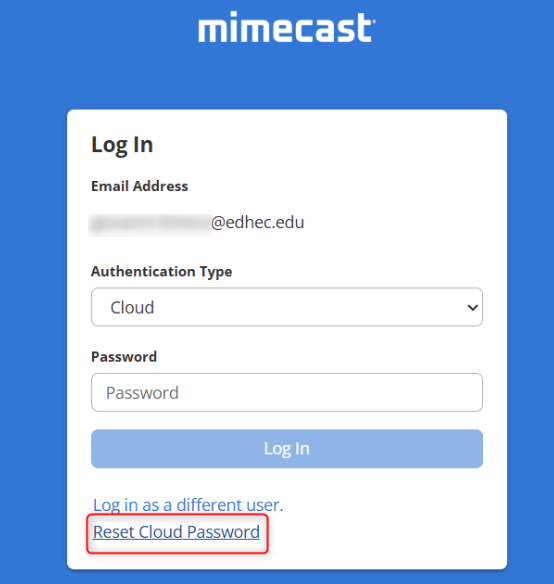
Follow the instructions to create or reset your Mimecast password.
Step 2: Open your blocked senders list
Once logged in to the Mimecast Personal Portal, go to:
Settings → Blocked Senders
Depending on your Mimecast interface, this section may also be called:
Managed Senders
Step 3: Remove blocked senders
Review the list of blocked senders.
If you find any sender that should not be blocked, remove it from the blocked list.
This will allow future messages from that sender to be processed normally by your email system.