
Collaborate with Slack
Use a Slack Group Direct Message (DM) to collaborate in your team (example: group activity). It’s the recommended place to:
- exchange quick messages,
- share links and files,
- start quick video calls,
- keep key information in a Slack Canvas.
This article illustrates how to :
- Create a group DM in Slack
- Use the group DM to share messages and documents
- Start a video call from the group DM
- Use Slack Canvas inside the group DM (shared notes)
Create a group DM in Slack
Here are the steps to create a group DM:
- In Slack, click New message (pencil icon).
-
In To: type and select the names of the students within your team

- Start typing your first message
- You can give a topic name to the group by clicking on "Edit" from the "About" tab
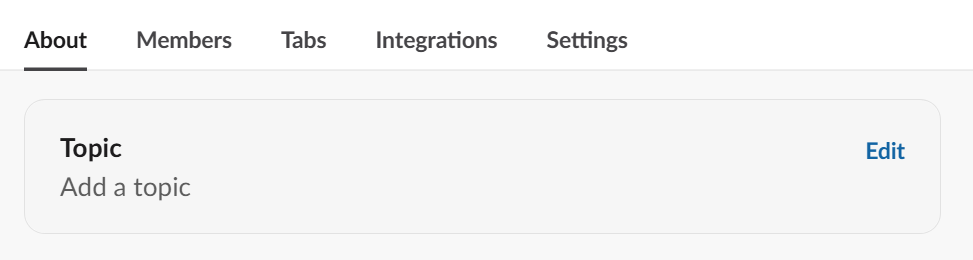
Use the group DM to share messages and documents
Messages
- Start typing a new message or use threads (reply to a message) to keep topics organized.
- Use @mentions when you need a specific person to respond.
Files and documents
You can share:
- a file directly (upload),
- a link
Recommendation
- If the document will be edited by multiple people, share a OneDrive link rather than uploading multiple versions in Slack.
Start a video call from the group DM
To start a video call from the group DM, first click on the group then:
- Click the Huddle / Call button (headphones or phone icon).
- Turn camera on/off as needed.
- Use Share screen if you need to present.
- Others join directly from the same group DM.
To know more about Slack conversations, we invite you to watch this video:
To organize your conversations in Slack, kindly watch this video:
Use Slack Canvas inside the group DM (shared notes)
A Canvas is a shared document inside Slack where you can keep information that should not get lost in chat.
What to store in the Canvas (recommended)
- Project goal and scope (2–3 lines)
- Roles and responsibilities (who does what)
- Links (OneDrive folder, key documents, references)
- Decisions + dates
- Action list (owner + due date)
How to create / open a Canvas
- Open the group DM.
-
Click on Add canvas
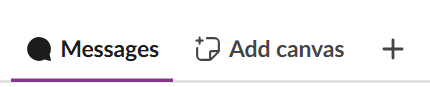
- Add your shared information.
- Keep it updated after each meeting.
Tip
- Put the most important links at the top (OneDrive folder + main document).
Watch the following video to know more about Slack Canvas: